How to Fix a Sale Date on a KSeF Invoice

An incorrect sale date (taxable event date) on an invoice happens more often than you think. Payment processing might drag on, an invoice gets issued late, or you only notice the mistake after sending it out.
The real headache starts when your accounting software doesn't let you adjust the sale date or limits formal corrections. In those cases, your best bet is to issue a corrective invoice directly in KSeF. Creating the correction itself is simple enough, but finding the right field in the form can be tricky.
Here’s a quick step-by-step guide showing you exactly where to go and what to select to update the sale date in KSeF.

1. Start by Issuing a New Invoice
Here’s the first trick: don't open the invoice you want to fix. Corrective invoices start as blank new documents. You'll link the original invoice further along in the process. Log into KSeF, open the left-hand menu, click Invoices, then select Issue VAT Invoice.

2. Switch to Extended Mode
When prompted to choose an invoicing mode, pick Extended Mode. This opens up all the necessary fields for corrections, including the option to adjust the sale date later on.

3. Select 'Corrective Invoice'
Move to Step 1 of the builder. Under invoice type, select Corrective. Next, choose the type of document you're fixing. If it was a standard invoice, select Standard Invoice; otherwise, match the original document type.

4. Enter the Reason for the Correction
Scroll down to the Corrected Invoice Details section. In the Reason for Correction field, simply type: Correction of sale date. That's clear enough for tax purposes. If your company uses specific internal tracking notes, feel free to add them here.
Note: The 'Tax Impact Type' field is optional, so you can leave it blank.

5. Add the Original Invoice Details
In the Identification Details section, specify which invoice you're amending by entering the details manually from your original copy:
Whether the original invoice was issued in KSeF
Issue date of the original invoice
Original invoice number
Original KSeF reference number (if assigned)
Double-check the Corrected Invoice Number field - make sure it matches the exact invoice number containing the error.

6. Go Through the 'Annotations' Section
This section handles transaction-specific tax flags. For a routine sale date fix, you can pass right through it.

7. Fill in 'Corrective Invoice Details'
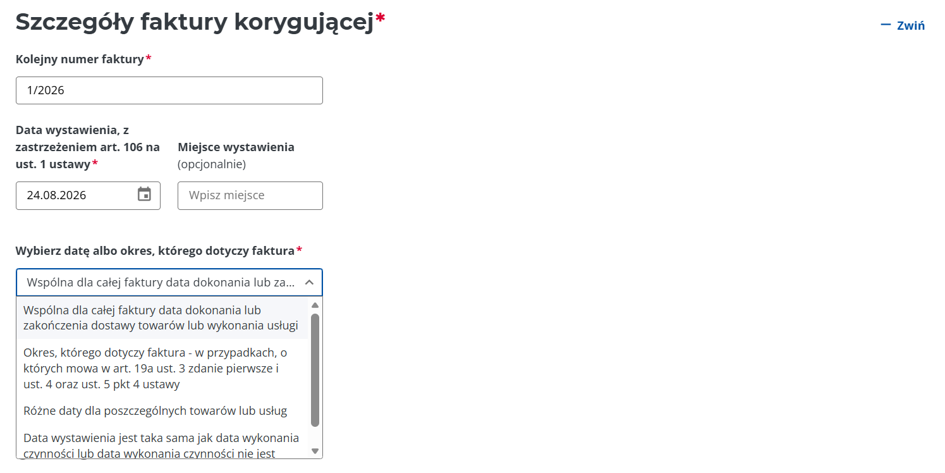
First, assign a document number to your correction. KSeF won't auto-number this for you, so check your last issued correction for the current fiscal year (e.g., if the last one was 5/2026, enter 6/2026). Set the current issue date for this corrective invoice.
Here’s where you update the sale date:
Still inside the details section, find the field labeled Select date or period covered by the invoice.
From the dropdown, select: 'Common date of supply of goods or completion of services' .
Once selected, a new field called Date of Delivery / Service Completion will appear.
Enter the correct sale date that should have been on the original invoice from the start.

8. Complete the Remaining Fields and Submit
Finish filling out any remaining fields relevant to your service. Keep an eye on required vs. optional fields in KSeF. Once you finish all 4 steps, hit submit. KSeF will process the document and return an official KSeF reference number.
Read more on our KSeF Integration Page:

